

Why manage team member access?
Give trusted team members access to Working with Children (WWC) Connect so they can help manage notifications on your behalf.
Choose what each person can do by assigning them an access level.
Before you start
Access management is currently available only for organisations using WWC Connect.
Before you begin, make sure you:
- are an Admin for your Business Profile
- have the team member’s email address
- know which access level you want to give them.
Access levels
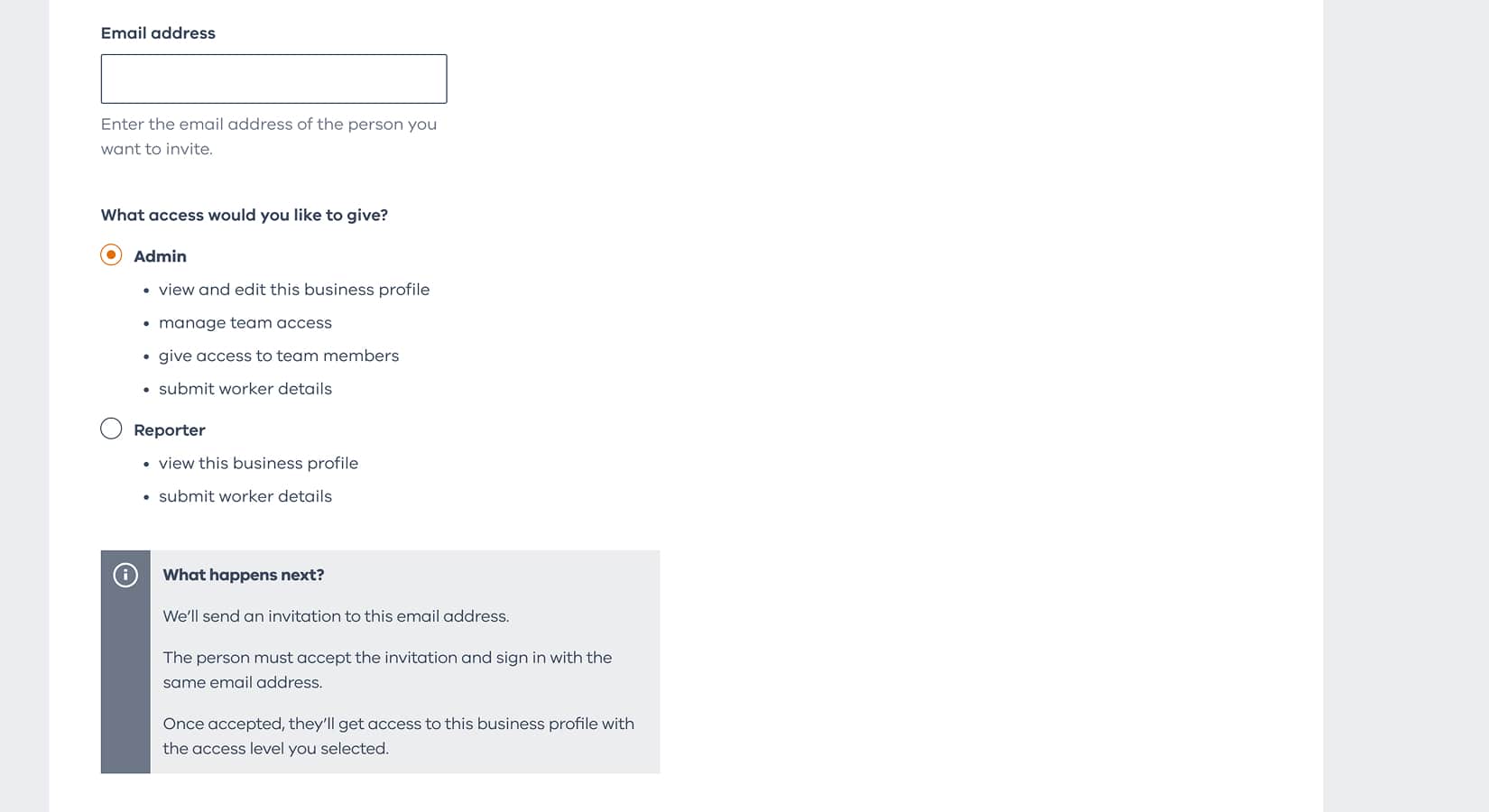
Admin
- View and edit your Business Profile
- Manage team member access
- Invite or remove team members
- Submit worker reports
Reporter
- View your Business Profile
- Submit worker reports
1. Select the services
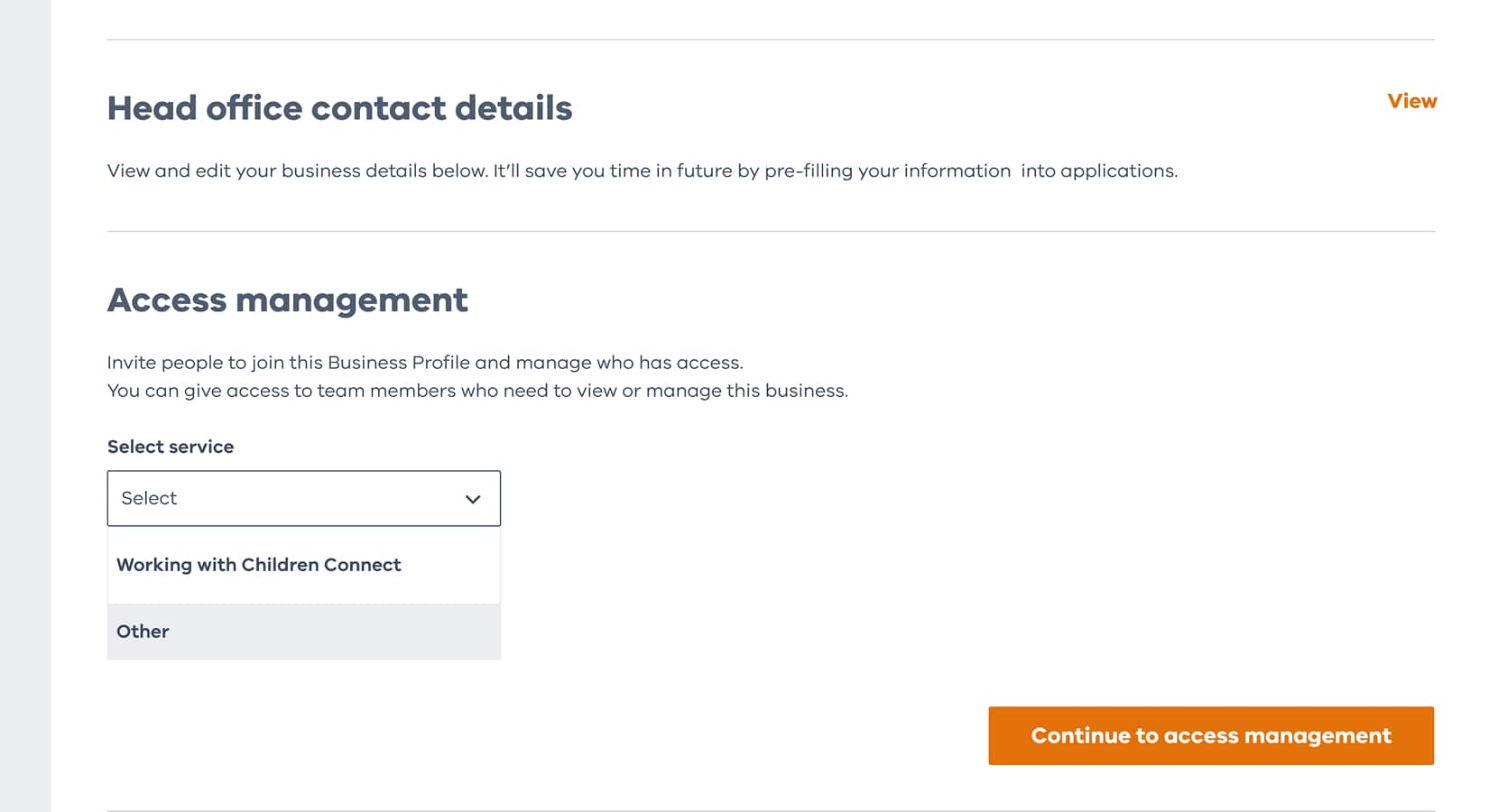
Go to ‘Manage’ and select ‘Access management’.
Choose the service you want your team member to access.
Important: Currently, access management is available only for WWC Connect.
2. Invite a team member
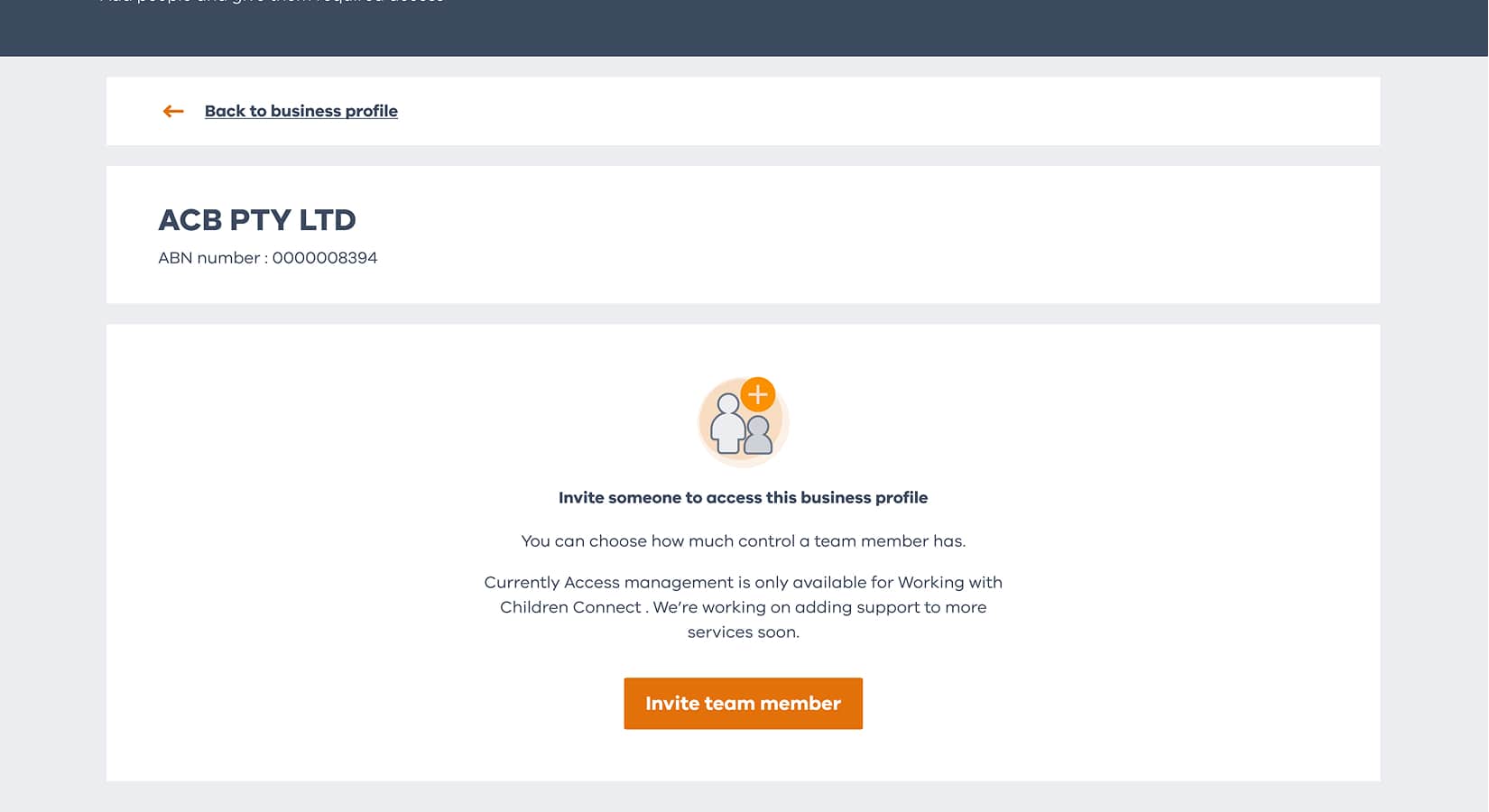
Select Invite team member to invite someone to access your organisation.
2.1. Enter team member details
Enter the team member’s email address.
Then choose the access level you want to give them.
2.2. Send the invitation
Review the details and select Give access.
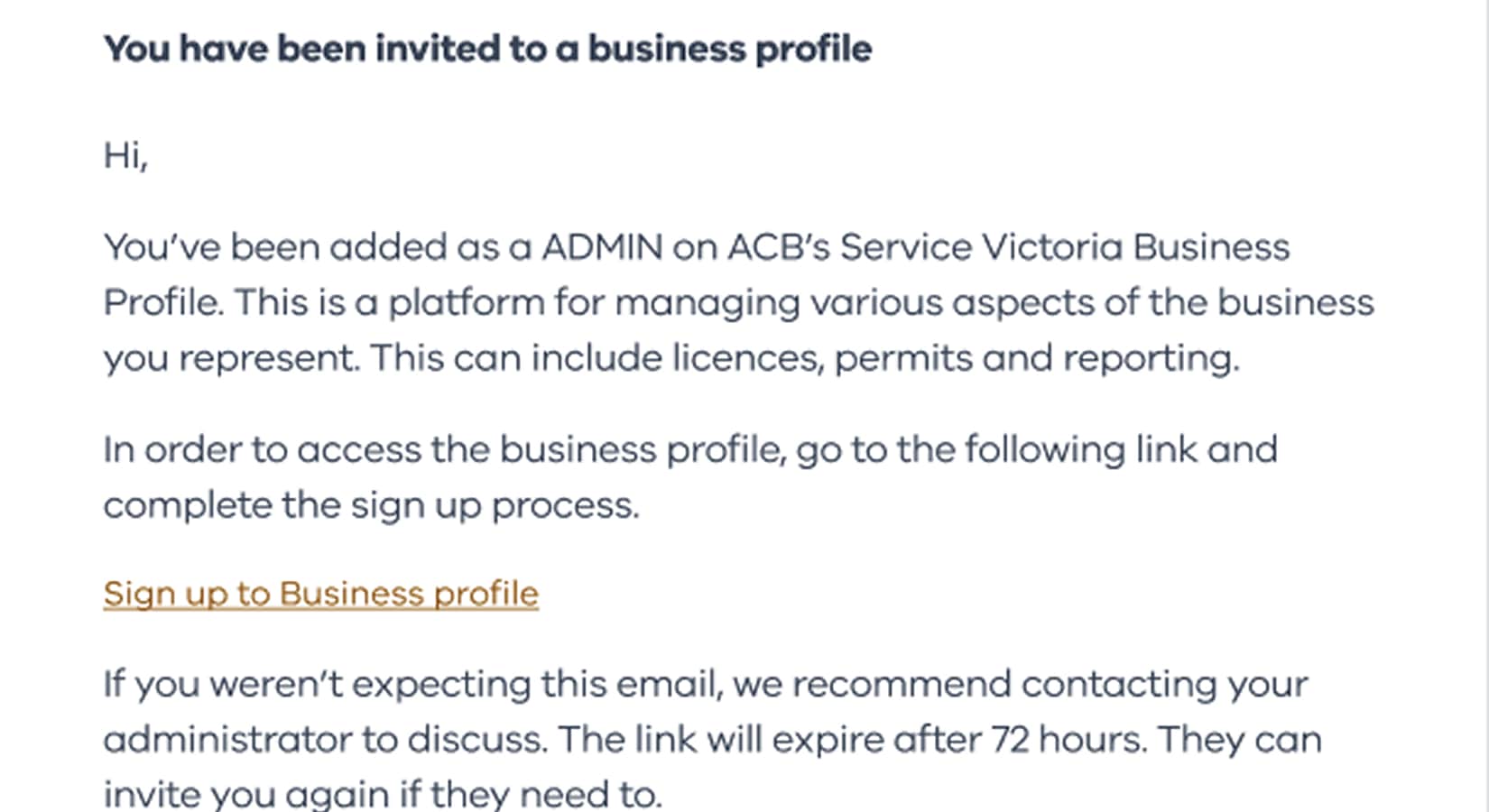
We’ll send an email invitation to your team member.
They’ll need to accept the invitation before they can access the service.
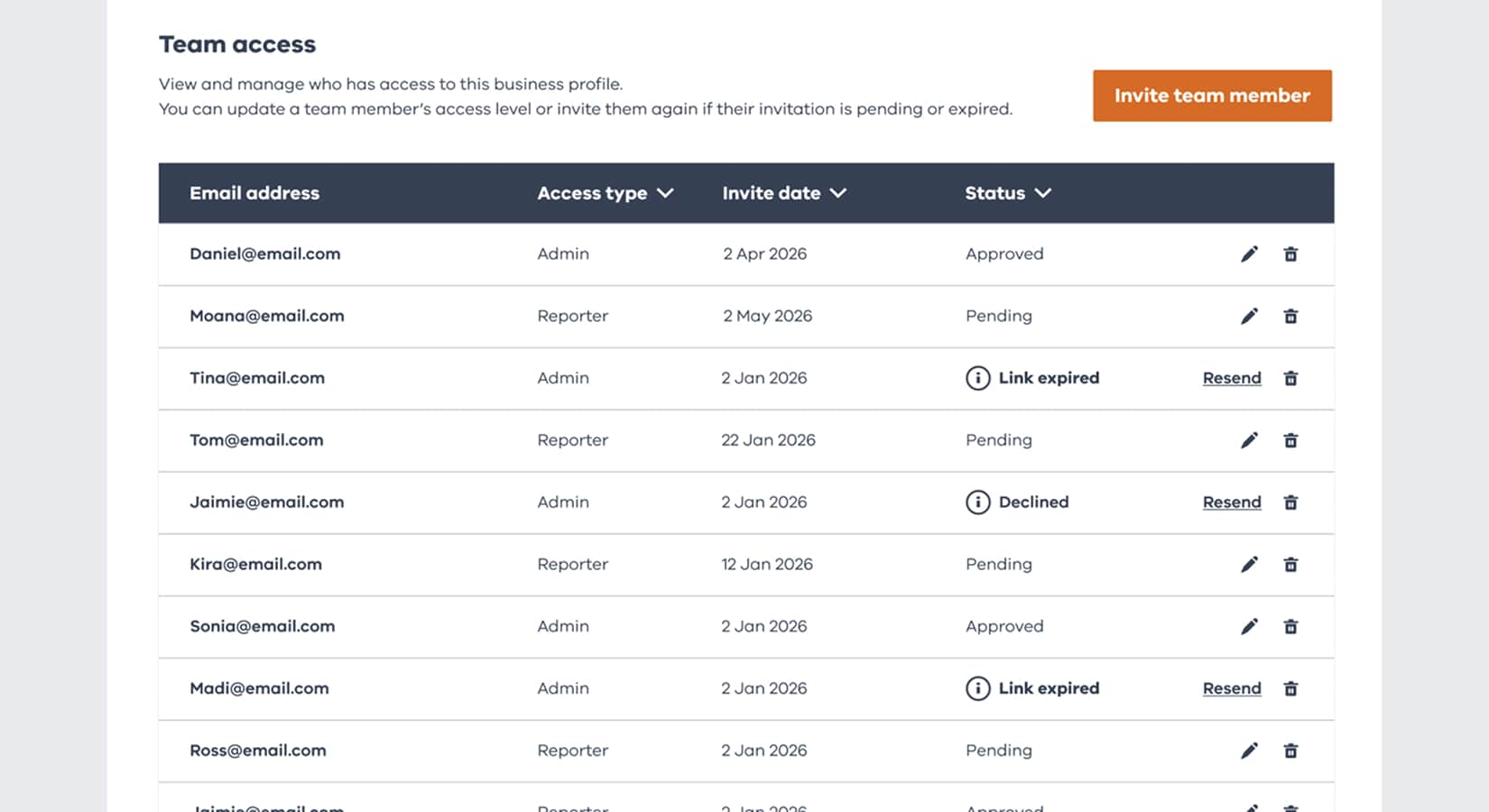
3. Manage your team
You can manage team member access at any time.
From the Access management page, you can:
- add new team members
- change a person’s access level
- remove team members who no longer need access.
Watch the video
Watch our step-by-step guide to learn how to manage team member access.
Get help with registering and reporting
Have questions about registering and reporting? Choose a category to learn more.



FAQ
Get answers to your questions about Working with Children Connect and more.